Add sync policy
- Select "Organization" > "AD sync".
- Click "Create policy" to open "Add AD sync policy" dialogue box.AD Server Address:Active Directory Domain Controller IP Address. Admin account:Account can access AD Server. Admin password:Password can access AD Server account. AD domain name:AD Server domain name, with a general format as: teampel.com. Sync scope:Each record is a sync rule, including Source object path (DN), Filter parameter and Target division.To specify which division nodes or users in AD server will be synced to which division of Teampel.Each sync policy includes at least a sync scope. Teampel initial password:Accounts synced to Teampel system need initial passwords so to sign in Teampel client when login password is required. Other settings:AD user's property in AD can be set to match with member property in Teampel. E.g., sync "displayName" property value of AD user to "Name" property of Teampel member."Auto sync" can be set up so the system will sync AD at the set time automatically.
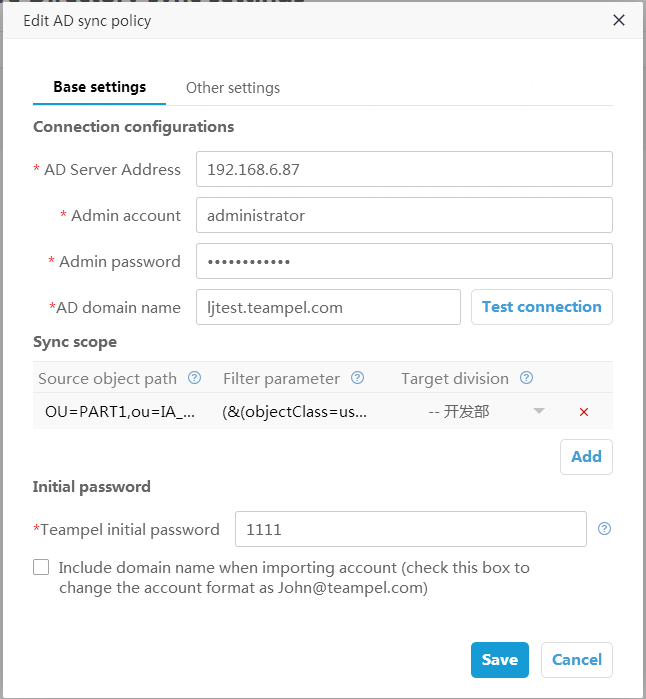
- Fill in the fields and click "Save" to save. Added sync policy will show in "AD sync" page.
Note:
- According to a sync policy it can import the selected or all users (User) or divisions (OU) to Teampel root department or primary sub-department from an AD server.
- If customer company has multiple AD servers, that can create multiple sync policies to import users (User) or divisions (OU) of multiple AD servers to Teampel system.
Preview and manual sync
- There will be a prompt in "AD sync settings" page if the imported Teampel data of AD server changed.
- Click "Preview" button to the right of the sync policy to preview the result.
- Click "Sync" button to the right to run sync. Teampel system will:
- Import the new users (User) and divisions (OU) in AD server that match the policy configuration.
- Update the changed information of synced users (User).
- Delete users (User) and divisions (OU) that do not match the AD sync policy.
Note:- When AD syncing, it starts from the specified division (OU), which will be the subdivision of the target division.
- For multiple AD sync policies, manual check and conflict resolution among policies are needed.
Modify sync policy
Click "Modify" button to the right of the sync policy to open "Modify AD sync policy" window, then edit it and save. It will sync according to the modified configuration next time.
Delete sync policy
Click "Delete" button to the right of the sync policy to delete the policy no longer used.
Note:
- Be careful to delete a policy. Make sure this policy is no long in use before deleting it. This cannot be undone once deleted.
- Deleting sync policies will not affect the users (User) or divisions (OU) already synced to Teampel system.